By Fahad Murtaza · Published · Updated
WordPress Revisions: How to Undo Changes and Roll Back
WordPress has several ways to undo a change, and each one covers a different part of the site. This guide goes through all of them and says what each one misses.
How do I undo changes in WordPress? For post or page content, open the editor, open Revisions, choose an earlier version and click Restore This Revision. For a page builder layout, use the builder’s history panel. For settings, menus, products or anything else, restore a backup, or roll back a per-change snapshot if your tooling records one.
Part 1: WordPress revisions
A revision is a saved copy of a post, made each time you save or update it. Posts and pages support revisions by default. Custom post types only have them when the post type declares support for revisions.
What a revision stores
A revision stores three fields:
- the post title
- the post content
- the excerpt
That is the full list of fields core compares and restores.
What a revision does not store
Almost everything else. Most post meta is not revisioned: since WordPress 6.4 a meta key is only included when the code that registers it opts in, and most plugins do not. In practice that means these are not covered by revisions:
- SEO titles and descriptions kept in post meta
- page builder layouts that live in post meta
- product prices and stock
- categories, tags and other term assignments
- the featured image, page template, slug, author and status
- site settings, menus, widgets, users and comments
Revisions are also per post. There is no “undo the last hour across the site” in core.
Restore a revision, step by step
- Open the post or page in the editor.
- Open Revisions. In the block editor it is in the Post settings sidebar; in the classic editor it is a Revisions line in the Publish box. It only appears once the post has revisions.
- Drag the slider, or use Previous and Next, to move through versions. Removed text and added text are highlighted side by side.
- To compare two versions that are not next to each other, tick Compare any two revisions.
- Click Restore This Revision. The editor reloads with that version as the current content.
- Check the result on the front end. Meta, terms and the featured image stay as they are now, not as they were then.
Restoring does not delete newer revisions, so you can move forward again if you picked the wrong one.
Autosaves
While you edit, WordPress saves an autosave in the background, about once a minute by default. There is at most one autosave per user per post, and each new one replaces the last. If the browser crashes, the editor offers to restore it. An autosave is a safety net for unsaved work, not a version history.
Limit or disable revisions
By default WordPress keeps every revision. The WP_POST_REVISIONS constant in wp-config.php changes that. To keep the 10 most recent per post:
define( 'WP_POST_REVISIONS', 10 );To switch revisions off (autosaves still work):
define( 'WP_POST_REVISIONS', false );A limit is usually the better choice: switching revisions off removes the only built-in undo for content.
Part 2: Page builder history
Page builders keep their own history because their layouts are not plain post content. Elementor is the common case. Its editor has a History panel with two tabs:
- Actions lists the steps you took in the current editing session. Click a step to go back to it. Ctrl+Z or Cmd+Z steps back one action. The list is gone once you leave the editor.
- Revisions lists saved versions of the page. Select one to preview it, then apply it to make it current.
This covers one page’s layout at a time. Site-wide design settings, and changes made outside the builder’s editor, are a different matter. The Elementor integration page covers how agent edits to Elementor pages are handled.
Part 3: Backups, the wide net
A backup from your host or a backup plugin captures the whole site: database, uploads, plugins and themes. It is the only one of the classic options that covers settings, menus, users and plugin data.
The trade-offs are real:
- Restoring is slow compared with clicking a button on one post.
- A full restore puts the entire site back to that moment. Orders, comments, form entries and edits made since then are lost unless you export them first.
- Backups run on a schedule, so the newest one may be hours old.
Part 4: Undoing changes an AI agent made
An AI agent connected to a site through an MCP server does not work like a person in the editor. In one session it can change a product price, an SEO description, a menu item, a setting and three pages. Revisions cover the content of the pages. Builder history covers nothing the agent did outside the builder. The backup covers all of it, at the cost of everything else that happened since.
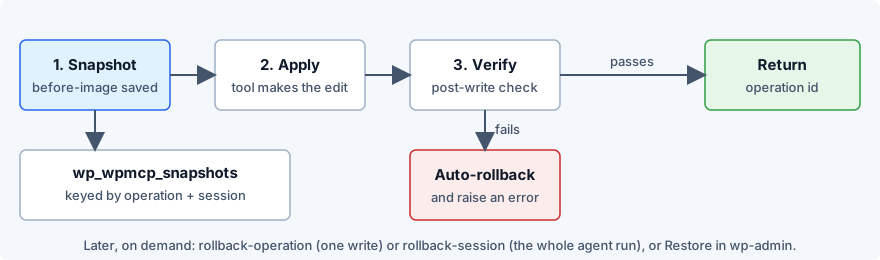
WP MCP is built to close that gap. Every tool that changes existing data goes through one engine that does the same thing each time:
- Snapshot. Before the write, it saves the affected object as it is: for a post, the full post row, all post meta, term assignments and comments; or the option, user, term, comment or WooCommerce order being changed.
- Apply. The change runs.
- Verify. Some tools check the result. If the check fails, the snapshot is restored in the same request.
- Return an
operation_id. Every write returns one, so the change can be referenced later.
Roll back an agent operation, step by step
From wp-admin:
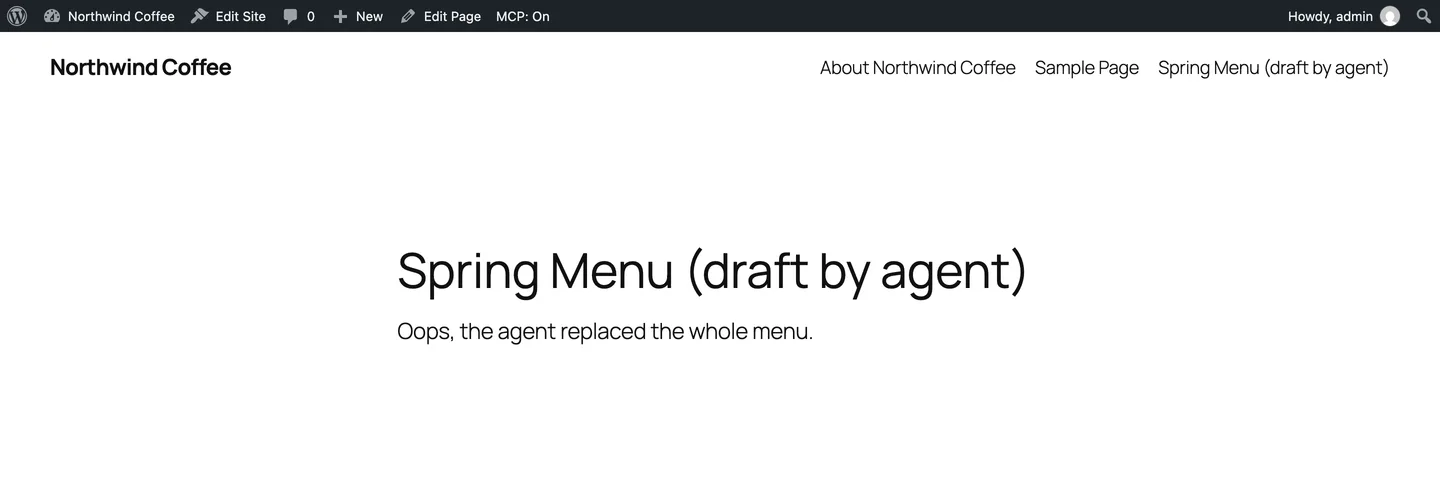
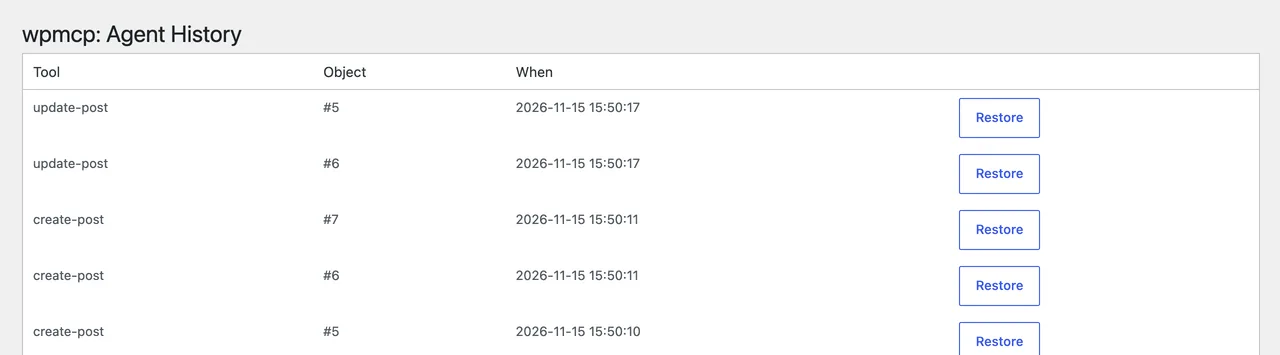
- Open the wpmcp screen in wp-admin. It lists recent operations.
- Find the change you want to undo.
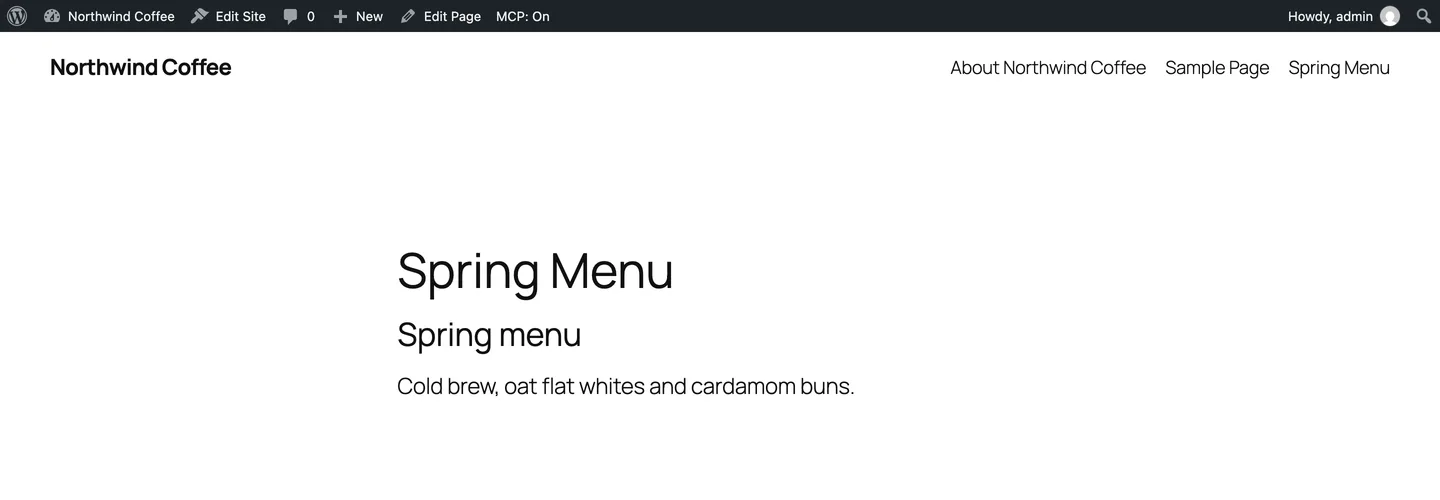
- Click Restore on that row.
From the agent:
- Ask the agent to call
list-operations, or take theoperation_idfrom the write’s response. - Call
rollback-operationwith thatoperation_idto undo one change. - To undo everything from one agent session, call
rollback-session. Each object goes back to its earliest snapshot, the state it was in before the session touched it, even if it was edited several times.
Rollback is a full restore, not a merge. If the change added a meta key that did not exist before, rollback removes it, so the object matches its earlier state exactly.
The limits, stated plainly
- Some writes cannot be undone. They are marked
recoverable: falsein the response. A WooCommerce refund is the clearest example: the order status can come back, the money cannot. - Deleted media files. Rolling back a permanent media delete restores the database record, not the file on disk. That tool is off by default.
- History depth. The free plugin keeps the last 20 operations, pruned by whole sessions so the most recent run always stays fully undoable. A session that has been pruned is refused by
rollback-sessionrather than undone in part. WP MCP Pro keeps unlimited history while the licence is active. See pricing. - Snapshots are not a site backup. They cover objects an agent changed through WP MCP. They do not protect against a failed server, a hacked site or edits made elsewhere.
The safety model docs describe the engine in full, and MCP security for WordPress covers the other guards around agent access.
Comparison: four ways to undo
| Method | What it covers | Granularity | How to restore |
|---|---|---|---|
| WordPress revisions | Title, content and excerpt of one post | One saved version of one post | Revisions screen, Restore This Revision |
| Page builder history | The layout of one page in that builder | One action or one saved version | The builder’s history panel |
| Backup | The whole site: database and files | The entire site at one moment | Restore through your host or backup plugin; later changes are lost |
| WP MCP snapshot | Each object an agent changed through WP MCP: post row, meta, terms, options, users, comments, orders | One operation, or one whole agent session | Restore button on the wpmcp screen, or rollback-operation and rollback-session |
These are layers, not alternatives. Use revisions for copy, builder history for layout work in progress, snapshots for agent changes, and backups for disasters.
Next step
If you plan to let an AI agent edit your site, set up the undo before the first write. Install the free WordPress MCP plugin, connect a client, make one small change, and restore it from the wpmcp screen so you have seen the rollback work. For a guided first session, follow Build a WordPress site with Claude.
Common questions
How do I undo changes in WordPress?
For a post or page, open it in the editor, open Revisions, pick the version you want and click Restore This Revision. For a page builder layout use the builder's own history. For settings, menus or a whole site, restore a backup, or use a per-change snapshot if a tool recorded one.
Where are revisions stored in WordPress?
Each revision is a row in the posts table of the database with the post type revision, attached to the post it belongs to. Revisions are kept per post, and deleting a post permanently deletes its revisions with it.
Do WordPress revisions slow down a site?
Revisions are not loaded when visitors view a page, so they do not slow the front end directly. They do add rows to the database, which makes it larger to back up and move. Set WP_POST_REVISIONS to a number in wp-config.php to cap how many are kept per post.
How do I restore a previous version of a WordPress page?
Edit the page, open Revisions in the editor sidebar, drag the slider to the version you want and click Restore This Revision. The restored version is loaded into the editor as the current content, and the versions after it stay in the list.
Can I undo changes an AI made to my WordPress site?
Only as far as your tools recorded them. Core revisions cover the title, content and excerpt of a post. WP MCP saves a snapshot before every write an agent makes through it, so one change or a whole agent session can be restored from wp-admin or by the agent.
Does Elementor have a revision history?
Yes. The History panel in the Elementor editor has an Actions tab, which lists the steps of the current editing session, and a Revisions tab, which lists saved versions of the page that you can preview and apply.
All WP MCP guides, or see every plugin integration. Topic: Get started and stay safe.